


Rocket Control BETA
Windows 10 and Windows 11, 64-bit (x64). Windows on ARM and 32-bit Windows are currently unsupported.
Download Rocket ControlROCKET GAMES / CONTROLLER OVERCLOCKING
Every input counts, especially in shooters. Controller Overclocking adjusts the USB polling frequency of a supported controller on a Windows PC. You can overclock your controller and then check which values actually arrive. For Call of Duty, Warzone and Fortnite, a stable setup matters most.
Intended for Windows 10 and Windows 11, 64-bit (x64). Testing of all Windows versions has not been completed.
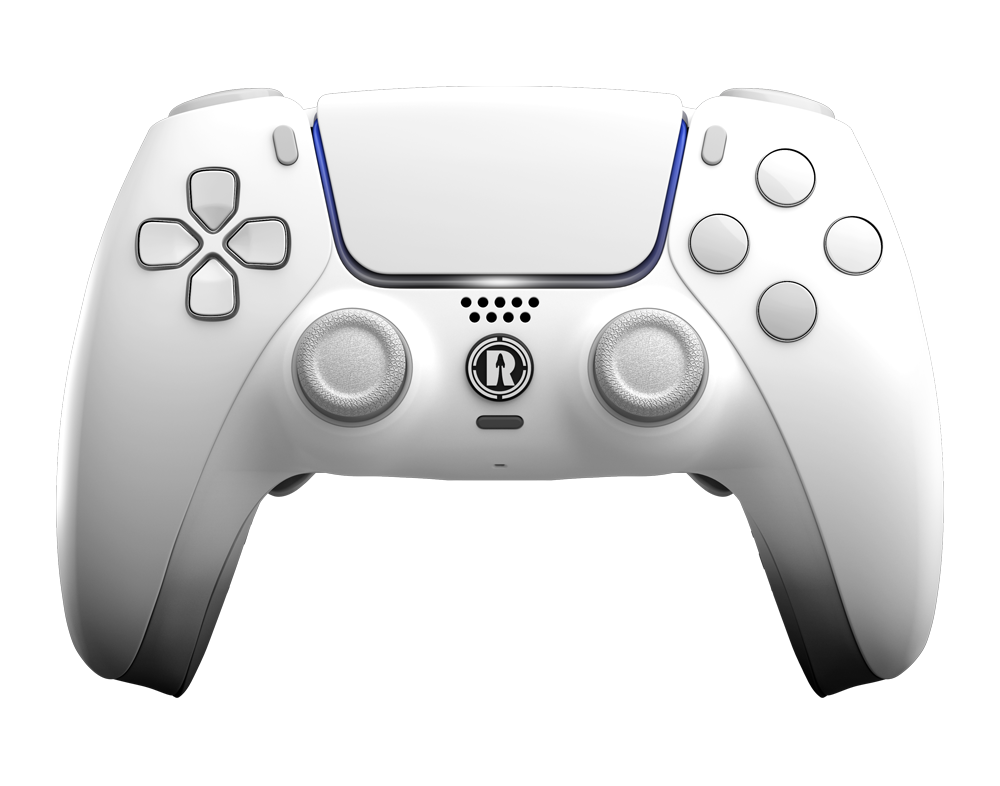
DOWNLOAD / RELEASE CANDIDATE
Windows 10 and Windows 11, 64-bit (x64). Windows on ARM and 32-bit Windows are currently unsupported.
Download Rocket Control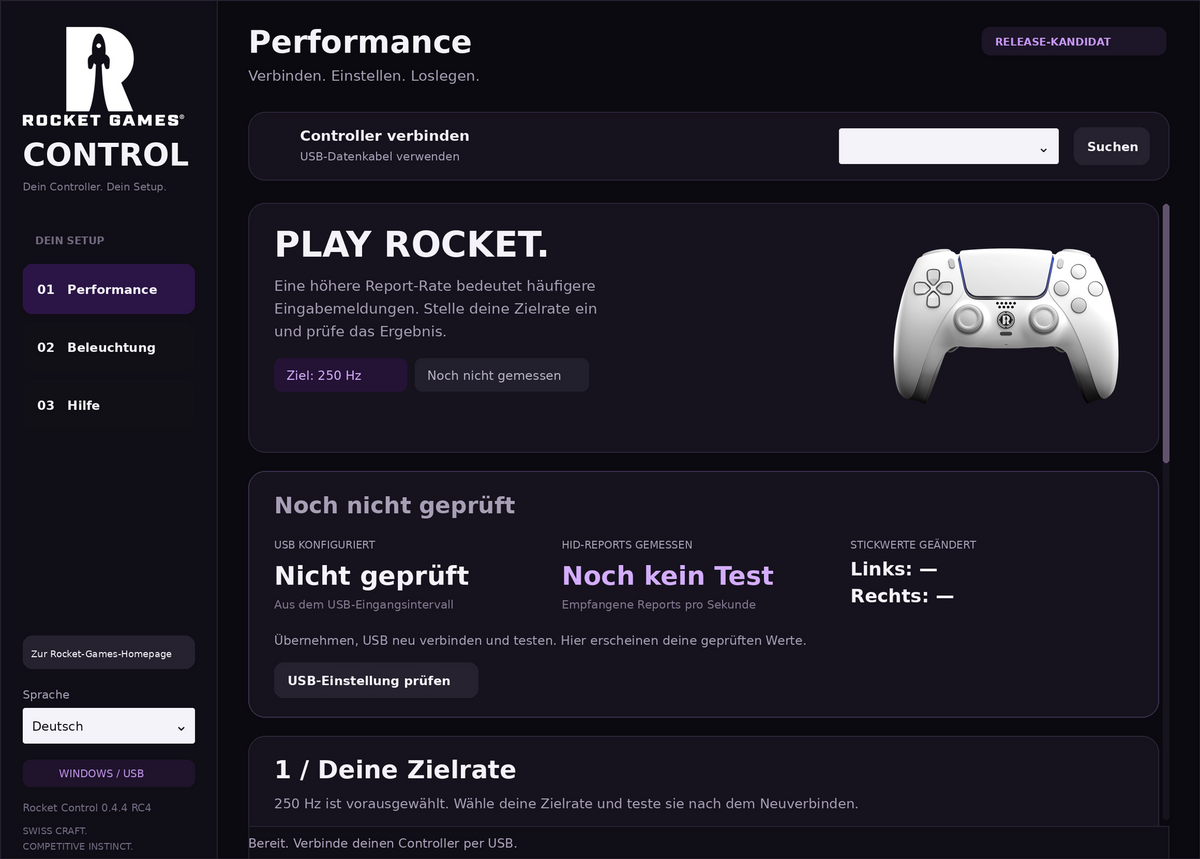
OVERCLOCKING / 01
Controller Overclocking means polling a supported controller via USB more frequently on a PC. This allows the computer to receive inputs at shorter intervals. It concerns communication between the controller and computer, rather than overclocking the CPU or graphics card. It does not automatically increase your game’s frame rate.
The input chain starts with your movement and ends with the visible result on screen. Sensors, controller firmware, USB, drivers and game processing sit in between. Each stage takes time. More frequent USB polling affects only part of this chain; it does not automatically speed up the sensors or your display.
The terms “controller overclock” and “overclock controller” therefore describe no guaranteed improvement. A high configured value does not prove that new inputs arrive equally often. Reports actually received and a stable connection are what matter. Check changes under identical conditions and repeat your measurement. Only then can you assess your particular setup. This requires understanding the Polling Rate correctly.
OVERCLOCKING / 02
The Polling Rate is the polling frequency in hertz (Hz): how often a device is polled each second. The sampling frequency of the stick sensors and the USB report rate are different quantities. A frequently polled device does not necessarily supply new stick values every time.
Calculate the theoretical interval with 1000 ÷ Hz = milliseconds (ms). At 125 Hz there are theoretically eight milliseconds between polls; at 500 Hz, two; at 1000 Hz, one. The actual waiting time depends on when your movement happens between polls.
A “1000Hz controller” does not necessarily display every button press within one millisecond. An “8000Hz controller” likewise does not automatically let you play eight times faster. Controller firmware, USB ports, drivers and game processing impose their own limits. Test higher target rates on your PC.
Start by testing over USB with a data cable. A charge-only cable is insufficient. Keep the cable and USB port unchanged for comparison measurements. Bluetooth uses a different transmission path; adapters, the radio environment and drivers affect the result. A USB setting cannot simply be transferred to Bluetooth. Test both connections separately instead of assuming identical values. The following chart shows calculated intervals only.
Theoretical intervals calculated as 1000 ÷ Hz. Not measurements or a guaranteed Polling Rate for any Rocket Games model.
OVERCLOCKING / 03
On Windows, a suitable filter driver can adjust USB polling for a supported device. The setting applies to its connection with this PC. It does not automatically become a permanent controller characteristic. Support and effects depend on the device, firmware and your system.
hidusbf is a Windows project that adjusts USB polling using a filter driver. Such changes affect the operating system more directly than ordinary game settings. Follow the documentation for your software version and record your original setting. A high number in a video does not replace a test with your controller.
An Input Lag test can measure different things. An online gamepad tester helps with buttons, stick movement and device detection. Its values are limited by the browser and measurement method. Measuring the full time from a button press to the visible image requires an appropriate test setup.
Rocket Control’s Hz test distinguishes USB configuration, received HID reports and changed stick values. It does not measure input latency. Test before and after a change using the same cable and USB port. Close other controller programs and repeat the measurement. Consider variations and dropouts too; a single peak is insufficient. The following guide walks you through Rocket Control.
YOUR SETUP / STEP BY STEP
Connect. Configure. Check. Follow the steps in order.
ROCKET CONTROL / 1 OF 8
Download the ZIP file. Right-click it and choose “Extract all”. Keep all supplied files together in the extracted folder.
ROCKET CONTROL / 2 OF 8
Open “RocketControl.exe” in the extracted folder.
ROCKET CONTROL / 3 OF 8
Connect your DualSense to the PC with a USB data cable. If needed, click “Search” and select your controller. This guide applies to USB.
ROCKET CONTROL / 4 OF 8
At startup, 250 Hz is preselected. Selecting a rate alone does not change the active setting.
Test higher target rates on your PC.
ROCKET CONTROL / 5 OF 8
Click “Apply setting & test”. Confirm the Windows request for administrator privileges so the driver setting can be applied.
ROCKET CONTROL / 6 OF 8
Follow Rocket Control’s instructions: Unplug the controller’s USB cable and reconnect it. The test then follows.
Use “Reconnect USB & test” to run it again.
ROCKET CONTROL / 7 OF 8
Close games and other controller programs first.
Move the sticks in circles to obtain values.
Keep moving both sticks in circles throughout the measurement.
ROCKET CONTROL / 8 OF 8
Rate derived from the USB input interval.
Controller reports actually received per second.
How often the received stick values changed.
A selected target rate is not a measurement result. 8000 HID reports per second do not automatically mean 8000 new stick values per second.
The test does not measure input latency.
You can save the measurement as CSV in the Hz test.
OVERCLOCKING / 04
The Windows driver setting does not change your PS5’s USB polling. The console does not load the Windows filter driver, so the PC setting no longer applies when you switch to PS5. This also applies to a DualSense-based Rocket controller. A PC guide to “PS5 controller overclock” is therefore not a guide for the console.
If you notice PS5 Input Lag, consider your entire setup. Check game mode, display settings, controller firmware and connection. Compare USB and Bluetooth under identical conditions. Game processing and the display can cause delays that a PC driver setting cannot fix.
Stick Drift is unwanted stick input, not automatically Input Lag. A controller can respond immediately yet still report unwanted movement. Likewise, new sticks do not solve delays caused by an incorrectly configured display. On PS5, choose features for your controls and play style: stick feel, triggers, grip and extra buttons. Available features are listed with each product.
OVERCLOCKING / 05
Windows driver changes can affect device detection and stability. A high target value guarantees neither a correspondingly high measured rate nor less Input Lag. Controller hardware, firmware and USB ports impose their own limits. This PC setting does not work on your console.
Record the original configuration and change only one setting at a time. Then test repeatedly under identical conditions. Check longer gaming sessions too: a short measurement can miss dropouts. If the connection becomes unstable, a stable original setting is preferable to a high target value.
Rocket Control is currently a release candidate. Windows 10 and Windows 11, 64-bit (x64), are intended systems; testing of all Windows versions has not been completed. Decide based on your results. A configured number alone is insufficient.
OVERCLOCKING / 06
Choose your controller for your play style. A USB setting alone does not determine how well a controller handles. Stick technology, triggers, additional buttons and grip affect how it feels. Check the specific product description and your selected features.
For PS5 Pro controllers, interaction with your PC or PS5 matters. We do not state unverified model measurements here. A software target rate is not a guaranteed product specification. Reliable latency comparisons require a known measurement method and conditions. Do not decide solely from a single Hz number.
Hall Effect and TMR sticks detect position magnetically, replacing the contact mechanism of traditional potentiometers. This sensor technology concerns precision and wear in stick sensing; it says nothing automatically about total input latency. The product specifies which technology is installed. Our guide to TMR technology explains the difference.
FORCE PRO has fixed, non-adjustable digital triggers. FORCE X has a Switch Trigger selector to switch between adaptive and digital triggers, allowing you to adapt the mode to your game. Digital trigger mode does not replace a USB setting.
Paddles allow extra actions without taking your thumb off the stick. In shooters this can help with movement and aiming. Button mapping and practice remain important. Explore PS5 controllers with paddles and check their specific features. The right controller is one whose functions you use. Grip, stick feel and triggers should suit your hand position.
UNDERSTAND. CHECK. CHOOSE YOUR FEATURES.
An overclocked controller does not replace a stable setup. Check your connection and measurements, then choose the features you use in your games.
Configure your controller nowYOUR QUESTIONS / CLEAR ANSWERS
On PC, more frequent USB polling can reduce part of the waiting time. Whether your setup benefits depends on the controller, firmware, driver and game. A configured number alone is insufficient. Compare repeated measurements under identical conditions and consider stability and variations too.
USB polling changes are possible on a supported Windows PC. A Windows filter driver installed there has no effect on PS5. The PC setting is not automatically transferred to the console. When investigating PS5 controller Input Lag, check the display, game mode, connection and firmware as well as the Polling Rate.
This is not conventional CPU Overclocking. Windows driver changes can nevertheless affect device detection and stability. The exact effect depends on the software and system. Follow your version’s documentation and record the original configuration. If problems occur, a stable original setting is preferable to a high target value.
Delays can come from the connection, game processing or display. Check your TV’s game mode, firmware and connection. Stick Drift is unwanted stick input, not automatically Input Lag. If problems persist, the Rocket Games Service Portal helps you assess your particular controller.
Rocket Control recommends 1000 Hz as a target rate. What matters is a stable rate that is actually supported. 1000 Hz corresponds mathematically to a polling interval of one millisecond. This calculation says nothing about total input latency. Higher values are not automatically better. Assess your setup using repeatable measurements and stable inputs.
An online gamepad tester helps with buttons, stick movement and device detection. It does not measure the full delay from a button press to the screen. That requires a suitable hardware measurement. Rocket Control’s Hz test shows USB configuration, received HID reports and changed stick values. It does not measure input latency. Use the same port and data cable for comparison measurements.